Google Ads Settings to Turn Off on Day One
Four default settings in a new Google Ads Search campaign that quietly spend money on the wrong clicks, and how to switch them off.

By Nitin Patil, founder of Gaur Kripa Digital
· 3 min read
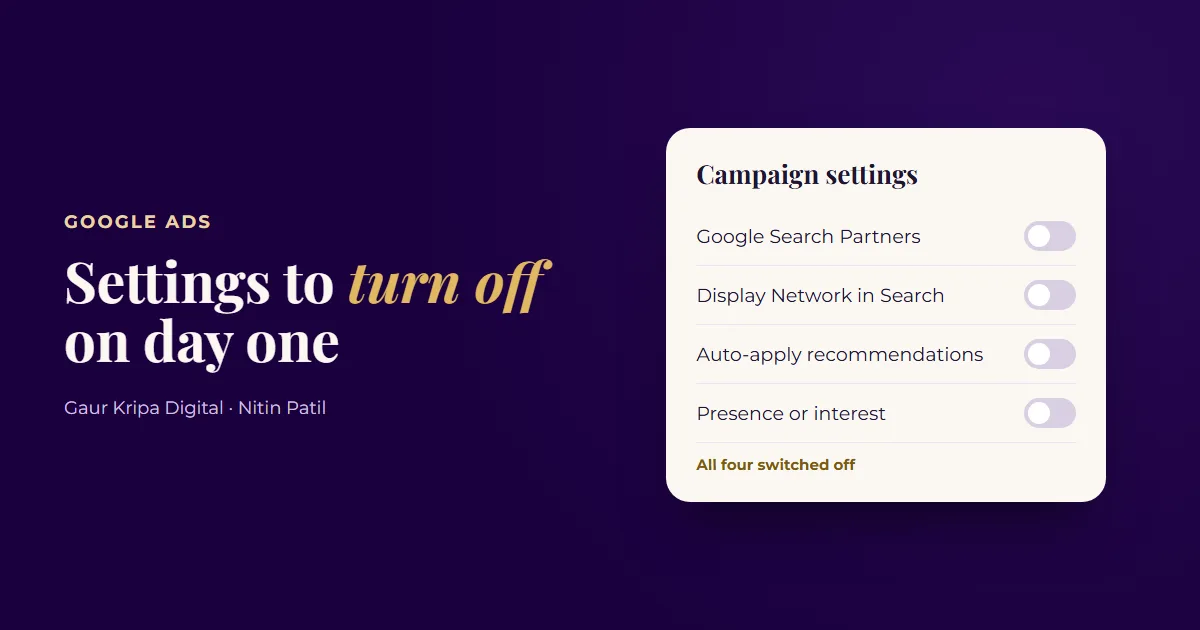
When you create a new Search campaign, Google Ads switches on several settings by default. Each one makes sense for Google, because it gives your budget more places to go. For a small local business with a tight budget, they often send money to clicks that rarely turn into calls.
These are the four I change on almost every new account. None of them takes more than a minute.
| Setting | Where to find it | Default | Change it to |
|---|---|---|---|
| Google Search Partners | Campaign settings → Networks | On | Off at launch |
| Display Network | Campaign settings → Networks | On | Off |
| Auto-apply recommendations | Recommendations → Auto-apply | Some types on | Off for keywords, match types, bidding, budgets |
| Location options | Campaign settings → Locations | Presence or interest | Presence |
1. Google Search Partners
Where: Campaign settings → Networks → "Include Google Search Partners".
Search Partners are other websites that show Google's search ads. You can't fully see or control which sites they are, and for most local service businesses those clicks convert worse than clicks from Google Search itself.
What to do: untick it when you launch. Once the campaign has a few weeks of data on Google Search, you can test turning it back on and compare cost per lead.
2. The Display Network inside a Search campaign
Where: Campaign settings → Networks → "Include Google Display Network".
This one surprises people. A Search campaign can also show your ads as banners on websites and apps. Someone reading a news article is in a very different mood from someone who just searched "emergency plumber near me", and the budget leaks into those cheaper, weaker clicks.
What to do: untick it. If you want display ads later, run them as their own campaign with their own budget so you can judge them on their own results.
3. Auto-apply recommendations
Where: Recommendations → Auto-apply.
Google can apply its own recommendations to your account automatically: new keywords, broader match types, bidding changes and budget suggestions. Some are useful. Some raise spend or widen targeting in ways you didn't plan, and they happen without you checking first.
What to do: switch off auto-apply for anything that adds keywords, changes match types, changes bidding or raises budgets. Read the recommendations every week instead and accept the ones that make sense for your business.
4. Location targeting: "presence or interest"
Where: Campaign settings → Locations → Location options.
By default, Google shows your ads to people in your area and also to people who are interested in it. That second group can include people far away who once searched for your city. For a business that only serves customers locally, those clicks are mostly wasted.
What to do: choose "Presence: people in or regularly in your included locations".
A two-minute check for existing campaigns
If your campaigns are already running, open each Search campaign's settings and check:
- Networks: Search Partners and Display Network unticked
- Location options: presence only
- Recommendations: auto-apply off for keywords, match types, bidding and budgets
Then watch your cost per lead for the next two to four weeks. Fewer wasted clicks usually means fewer total clicks too, so judge the change on leads and cost per lead, not on traffic.
I also made a short video on the first three settings: 3 Google Ads Settings to Turn Off on Day One.
Settings are only the start. Keywords, negative keywords and the landing page matter just as much, which is what our Google Ads management covers. If you also run Facebook ads, read how much to spend on ads to set a budget that matches your goal.
Not sure what your account is set to? Ask for the free ad account audit and you get the top 3 fixes for your account in writing.
Frequently asked questions
Should I ever turn Search Partners back on?
Yes, once a campaign has a few weeks of steady leads from Google Search. Turn it on, then compare cost per lead from partners with Google Search. Keep it only if those leads cost about the same and turn into customers.
Will turning these settings off reduce my clicks?
Usually, yes. You lose some cheaper, weaker clicks. Judge the change on leads and cost per lead, not on clicks or impressions.
Do these settings apply to Performance Max campaigns?
No. Performance Max runs across Google's networks by design. These settings are for standard Search campaigns, which is where most local businesses should start.
 4 Google Business Profile Fixes for More Local Calls
 Meta Pixel and Conversions API in Plain English
 Boost Post vs. Lead Ads: Which One Brings Real Customers?